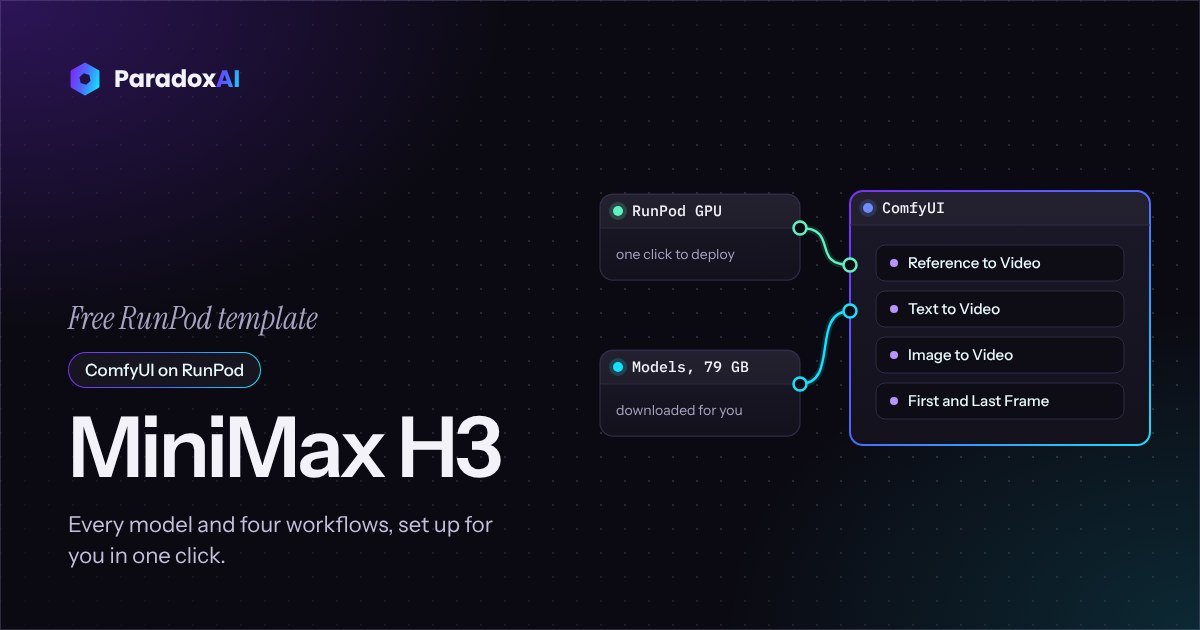
MiniMax H3 makes a video and its sound together: voices, sound effects and music, from your pictures, a video, a voice and your words. It needs a big GPU and about 79 GB of model files, which takes a while to set up by hand. Our free RunPod template does it for you: ComfyUI, the models and four ready workflows, on a GPU you rent by the second.
What you need
- A RunPod account with some credit. You pay RunPod for the GPU time you use, by the second, at the price RunPod shows before you deploy.
- Nothing else: no API key, no paid prompt service and no ParadoxAI account. You write the prompt yourself.
1. Deploy the template
Open the MiniMax H3 template and press Deploy on RunPod. On RunPod’s deploy page, pick a GPU, choose CUDA 13.0 or newer in the filters, and click Deploy Pod. Which GPU:
- RTX PRO 6000 (96 GB): a good pick for MiniMax H3.
- H100 or H200: faster, and they cost more.
- 48 GB cards (L40S, RTX 6000 Ada, A6000): a cheaper choice.
- RTX 5090 (32 GB): the least memory of these. If it runs out, lower megapixels to 0.5 or make the video shorter.
2. Wait for the first start
The first time, the pod downloads the models, about 79 GB. Open Logs to follow it: the lines start with [ParadoxAI], and everything is ready means it is done. The files stay on the pod’s volume, so the next start takes seconds.
3. Open ComfyUI and pick a workflow
Click Connect, then ComfyUI (port 8188). Click Workflows on the left, then the ParadoxAI MiniMax H3 folder. There are four:
- Reference to Video: the same character in every video, from up to 9 pictures, 3 videos and 3 voices.
- Text to Video: describe a scene and get the video and its sound.
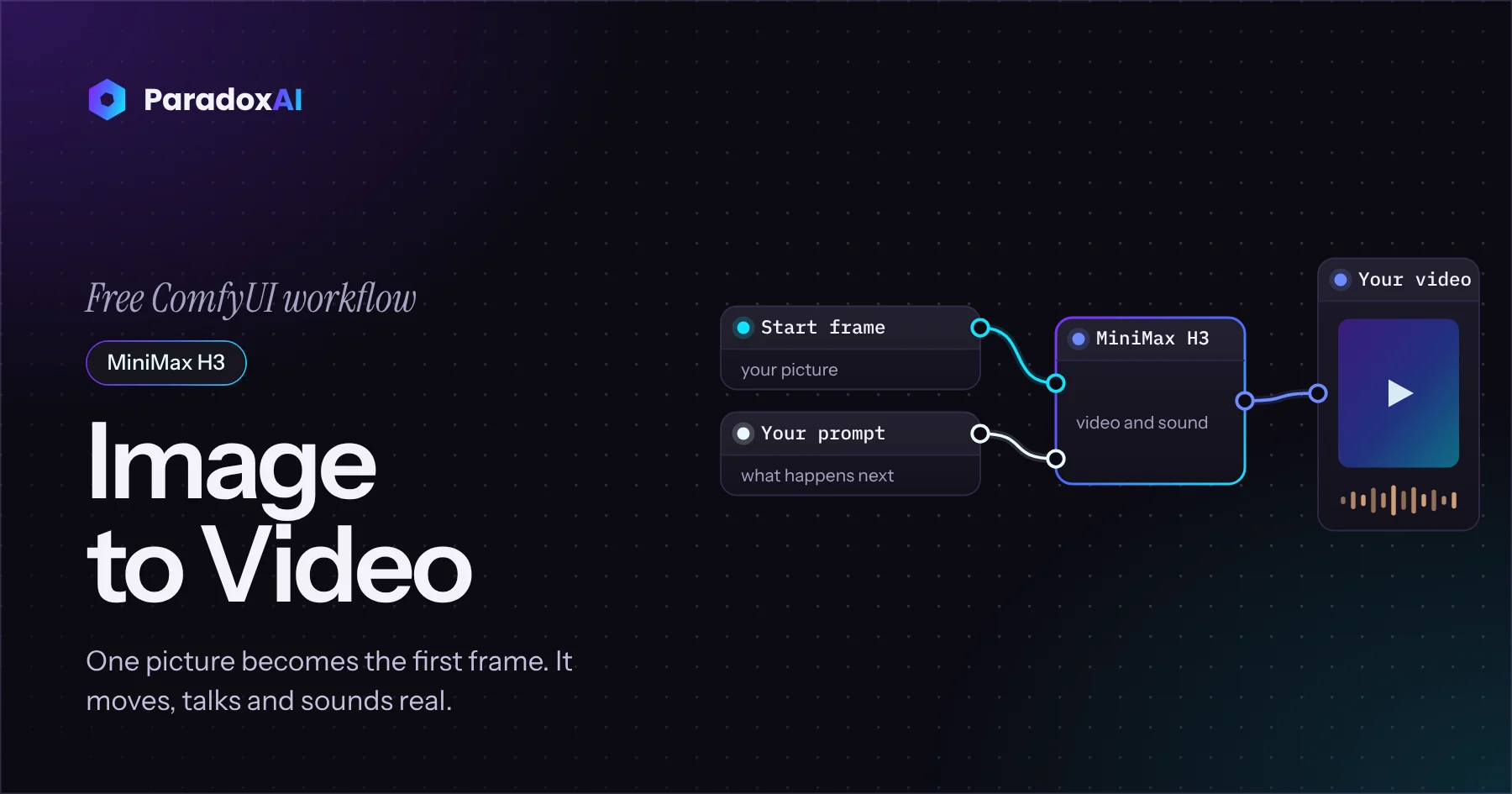
- Image to Video: one picture becomes the first frame, and it moves and talks.
- First and Last Frame: give the first and the last frame, and get the video in between.
Each one opens with a Start here note and an example prompt.
4. Write your prompt and press Run
Change the example prompt, keep its headings, and press Run. The workflows start at 5 seconds and 24 frames a second, and go up to about 15 seconds. A turbo LoRA makes each video in 8 steps, so leave it on. Your video is saved with its sound in output/ParadoxAI, with no hidden information in the file, ready to post.
Settings worth knowing
- minimax_quant: which version of the big models to download. Keep
int8, the version the workflows are made with.nvfp4takes a smaller text encoder for RTX 50 and RTX PRO 6000 cards, andfalsedownloads the full models, about 142 GB, so pick a 200 GB volume. - CIVITAI_LORAS: MiniMax H3 LoRAs to download from CivitAI, by their model version numbers, with your CivitAI key in civitai_token.
- LLM_KEY: only if you want the References Manager to write prompts for you with your own OpenRouter key. You never have to.
If it runs out of memory
Lower megapixels to 0.5, make the video shorter, or pick a GPU with more memory.
When you finish
Stop the pod in RunPod: you stop paying for the GPU, and the files stay, for a small storage fee. Terminate deletes everything.