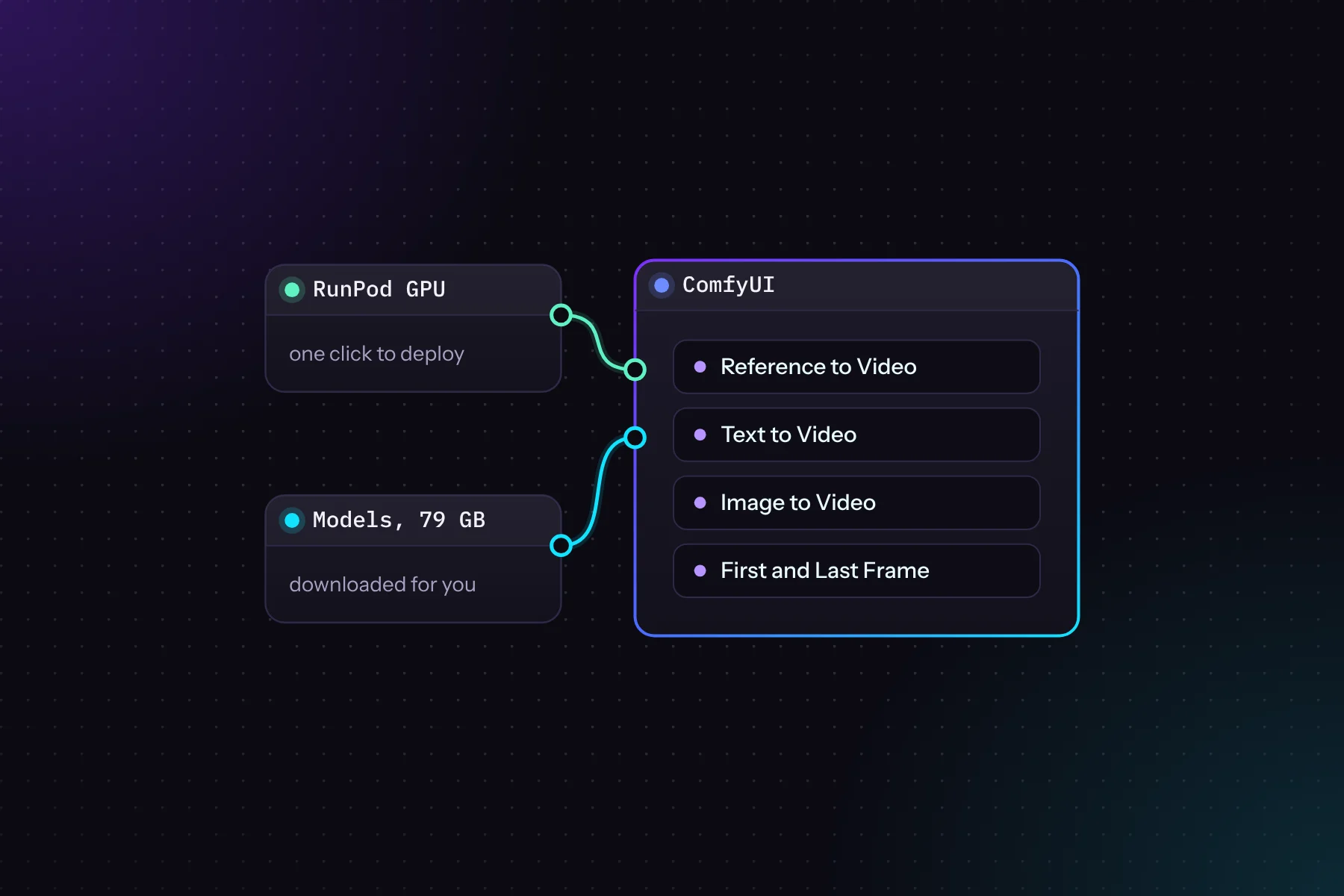
The easiest way to run Krea 2 without a big GPU of your own is a RunPod pod with ComfyUI already set up. Our template does it in one click for members: it starts ComfyUI and JupyterLab, then downloads the Krea 2 files and your ParadoxAI workflows with your key, about 20 GB the first time. Later starts take seconds, and an RTX 5090 is a good GPU to start on.
What RunPod is
RunPod rents GPUs by the second. A pod is one rented GPU computer, and its volume is the disk at /workspace that keeps your files when you stop the pod. You pay for the GPU while the pod runs, and a little for the volume's storage while it is stopped. Terminating a pod deletes the volume and everything on it.
Which GPU to pick
- RTX 5090 (32 GB): a good start for Krea 2 photos.
- RTX PRO 6000 (96 GB): the most room, for video and big batches.
- CUDA 13.0 or newer: our template is built for CUDA 13.0, which needs NVIDIA driver 580 or newer. Choose CUDA 13.0 in the filters when you deploy, or the pod waits and says so in its log.
Set it up, step by step
- Make a RunPod account and add some credit.
- Save your ParadoxAI key once in RunPod: open Secrets, click Create Secret, name it exactly
paradox_keyand paste your key. It goes into RunPod's own page, never into a chat or a file you share. - Open your Downloads page on ParadoxAI and press Deploy on the RunPod card. Pick the GPU and CUDA 13.0 or newer.
- Watch the pod's Logs. The lines start with
[ParadoxAI], and the first start downloads about 20 GB. - Press Connect and open port 8188 for ComfyUI. Your workflows are in the Workflows menu.
- Paste your key into the VIP Key box of each workflow once and save it with Ctrl+S.
Add your own LoRA
Open JupyterLab (Connect, port 8888), go to models, then loras, and upload your LoRA file. Press R in ComfyUI to refresh, and pick it in the LoRA box. A LoRA we train for you comes with one command that downloads it straight into that folder.
Keep the cost down
- Stop the pod when you finish. Your files stay on the volume, and the next start takes seconds.
- Terminate it only when you want everything gone.
- Pick the GPU you need: the RTX 5090 for photos, a bigger card only for video.
- Keep your pod's links to yourself: ComfyUI and JupyterLab have no password on RunPod, like most templates.
One key, one pod
A pod counts as one computer for your key, the same as your own PC. If the key is in use somewhere else, the pod says so: press Move my key on your Keys page and restart the pod.